

You've got a customer's application open in VS Code, an API definition beside it, and a pentest due to start. The extension puts the scan command within reach, but the active file contains a staging address, another customer's workspace is still selected, and nobody has checked where the screenshots will be stored. That's how editor convenience becomes a delivery problem.
A plugin for Visual Studio Code should be a controlled interface to your penetration-testing service, not permission to test whatever happens to be open. For MSSP operators, the first question isn't how to install it. It's what leaves the workstation, under whose authority, and which customer receives the evidence.
Table of Contents
- What the Pentest Plugin Sends from the Editor
- Install and Sign In on a Verified Account
- Choose Local, Remote, or Dedicated Execution
- How to Scope and Launch an Authorized Scan
- How to Read Evidence and Export the Report
- Fixes When Auth Scope or Export Fails
- Keep the Extension Only After These Checks
What the Pentest Plugin Sends from the Editor
What each editor action sends
| Editor action | Data that leaves | Guardrail |
|---|---|---|
| Install from Marketplace | Extension package only | Check publisher identity before enable |
| Sign in | API key stored in SecretStorage | Verified user and organization only |
| Select a target | Chosen host, API, range, or cloud account | Match a written authorization |
| Start the scan | Selected target and scope, not the whole repo | Explicit confirm before intrusive tests |
| Watch status | Job id and progress | Async updates, editor stays responsive |
| Open a finding | Evidence metadata and screenshots | Secrets redacted in the output channel |
| Export the report | PDF or JSON for that engagement | Tenant-scoped, not a shared dump |
Treat this table as an acceptance contract for the integration. It describes the behavior your team should demonstrate before using the extension on customer work, not behavior to assume from a Marketplace description.
Walk the rows in order. Installation brings the package into the editor; it shouldn't upload engagement content. Marketplace requests still involve distribution traffic, so “extension package only” isn't a promise that installation generates no network metadata.
Sign-in introduces a credential boundary. Store the API key in VS Code SecretStorage, never settings.json, a committed .env file, or an output channel. SecretStorage describes storage, not authentication transport: the credential still has to reach the intended authenticated service over its approved connection.
Separate target data from workspace access
Target selection should transmit the chosen web host, REST or GraphQL API, network range, or AWS, Azure, or GCP account identifier. It shouldn't attach source files, terminal history, or neighboring customer folders. Compare that selection with the authorization before treating it as an engagement target.
Starting the scan sends the approved target and scope. Require an explicit confirmation for intrusive activity, then receive the job id and progress asynchronously rather than tying the editor to a blocking request.
Opening a finding brings evidence back into the operator's environment. Screenshots and request excerpts can contain customer information even when the output channel redacts credentials, so access controls must cover evidence storage as well as logs.
Export is another disclosure event. A PDF sent to a customer and JSON ingested by an MSSP portal must contain only that engagement's material.
Privacy gate: If you can't explain a row's destination, retention, and tenant boundary, don't approve that action.
Security or privacy concerns ranked as the top technology deal-breaker in Stack Overflow's 2025 Developer Survey, ahead of pricing and competing alternatives. For an MSSP, that concern becomes a concrete deployment decision: document backend destinations, remote-host behavior, evidence residency, and administrative restrictions.
Installation is the next step only after the target row matches written authorization.
Install and Sign In on a Verified Account
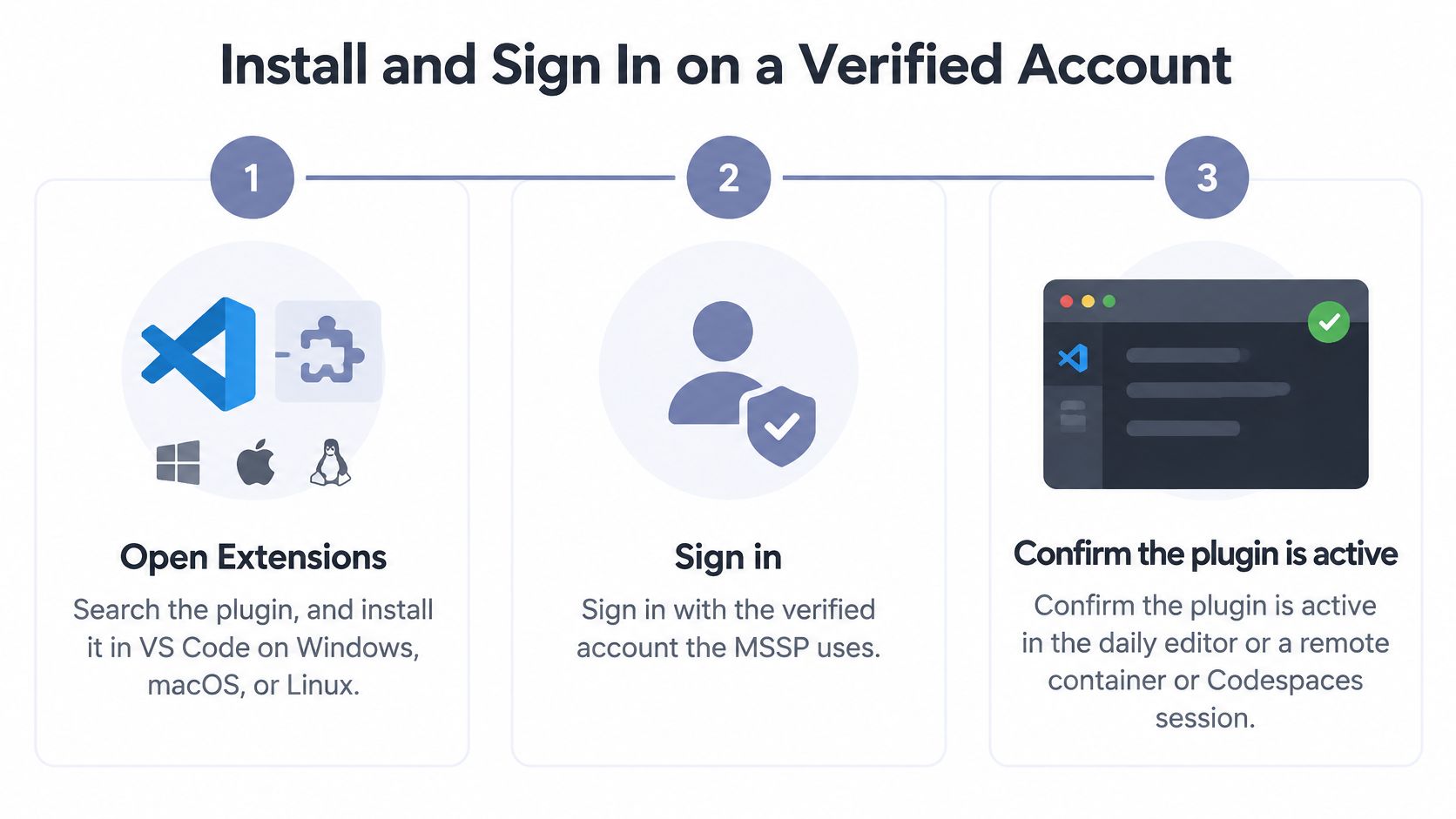
Use the environment your operators work in: VS Code on Windows, macOS, or Linux, including the remote container or Codespaces session used for delivery. A successful laptop test doesn't establish that credentials and commands behave correctly in a remote extension host.
Follow the account and tenant path
Verify the listing before installation. Open Extensions, search for the ThreatExploit publisher listing, and confirm its identity against your approved software record. Skip similarly named listings. If you can't establish the correct publisher, stop rather than choosing the closest search result.
Reload the window and inspect when the extension activates. It should become operational through its relevant commands or findings view, not perform authentication, cloud discovery, or report downloads every time the editor opens.
Run the sign-in command. Create or paste the API key through the intended credential flow, and verify that it lands in SecretStorage. Don't put it in
settings.json, a repository.envfile, command arguments saved in shell history, or the output channel. Limit who may hold the key according to the operator's assigned role.Stop if the account isn't verified. Our autonomous testing platform and Studio are limited to verified users and organizations. A working editor installation doesn't establish account eligibility.
Select the partner workspace and customer tenant before filling any target field. Using controlled test accounts, confirm that another customer can't retrieve this tenant's jobs. A selector label alone isn't proof of backend isolation.
If another AI assistant runs in the same window, keep pentest credentials and unapproved customer evidence out of its chat context. Don't paste authentication diagnostics into chat without reviewing and redacting them.
Test credential persistence without exposing the credential. Reload and confirm the authenticated session still works, then sign out and sign back in. Inspect logs for accidental disclosure, but don't print the stored key to prove that storage works.
Keep activation deliberately small
For extension maintainers, declare narrow activation events such as onCommand for scan and sign-in commands or onView for findings, rather than the broad * event. VS Code uses a separate extension-host process; its activation-event documentation explains that activate() runs once when a declared event triggers activation.
Keep that handler focused on command registration. Defer network calls, API-client setup, and report loading until the operator requests them, consistent with Microsoft's extension anatomy guidance.
The successful endpoint is a signed-in editor with the correct tenant selected and no credential disclosure. Keep scan execution on hold until the authorization check passes.
Choose Local, Remote, or Dedicated Execution
The editor's location and the scanner's location are separate decisions. Agree on the execution model before approving the engagement, then record the actual data path rather than relying on the word “local.”
Where each execution model sends data
| Execution model | Where the scan runs | Data that leaves the workstation | Best fit |
|---|---|---|---|
| Local workstation | Editor and operator on the laptop; verify whether testing executes locally or through the service | Target, scope, and job metadata to the testing service | Small single-operator checks |
| Remote container or Codespaces | Editor session in the remote host; verify the scanner's execution location separately | Same target data, sent from the remote host | Teams standardized on dev containers |
| Dedicated pentest server or region | Server or region named in the statement of work | Approved target and scope to the designated service; job metadata and evidence through the agreed storage path | Multi-customer work needing tenant separation |
A laptop-based interface is convenient for an individual operator, but it doesn't establish local-only processing. A remote container changes where the extension runs and where credentials may be held; it doesn't remove the outbound service connection.
Dedicated execution gives the delivery lead a clearer infrastructure assignment. Match the server and region to the statement of work, and keep another customer's server off the engagement.
Record the execution decision
- Destination: Record the approved region and backend service destinations.
- Credential holder: Identify the operator or service identity authorized to use the API key.
- Evidence location: Record where job identifiers, screenshots, and exported reports persist.
- Repeatability: Preserve the execution model across recurring assessments unless an approved change requires otherwise.
Use the penetration-testing infrastructure guide to structure that decision. If a customer requires offline or self-hosted execution, obtain written confirmation that the proposed deployment meets it before selecting the plugin; don't infer availability from editor compatibility.
An unresolved residency or execution requirement is an engagement gap, not an implementation detail to settle after testing starts.
How to Scope and Launch an Authorized Scan
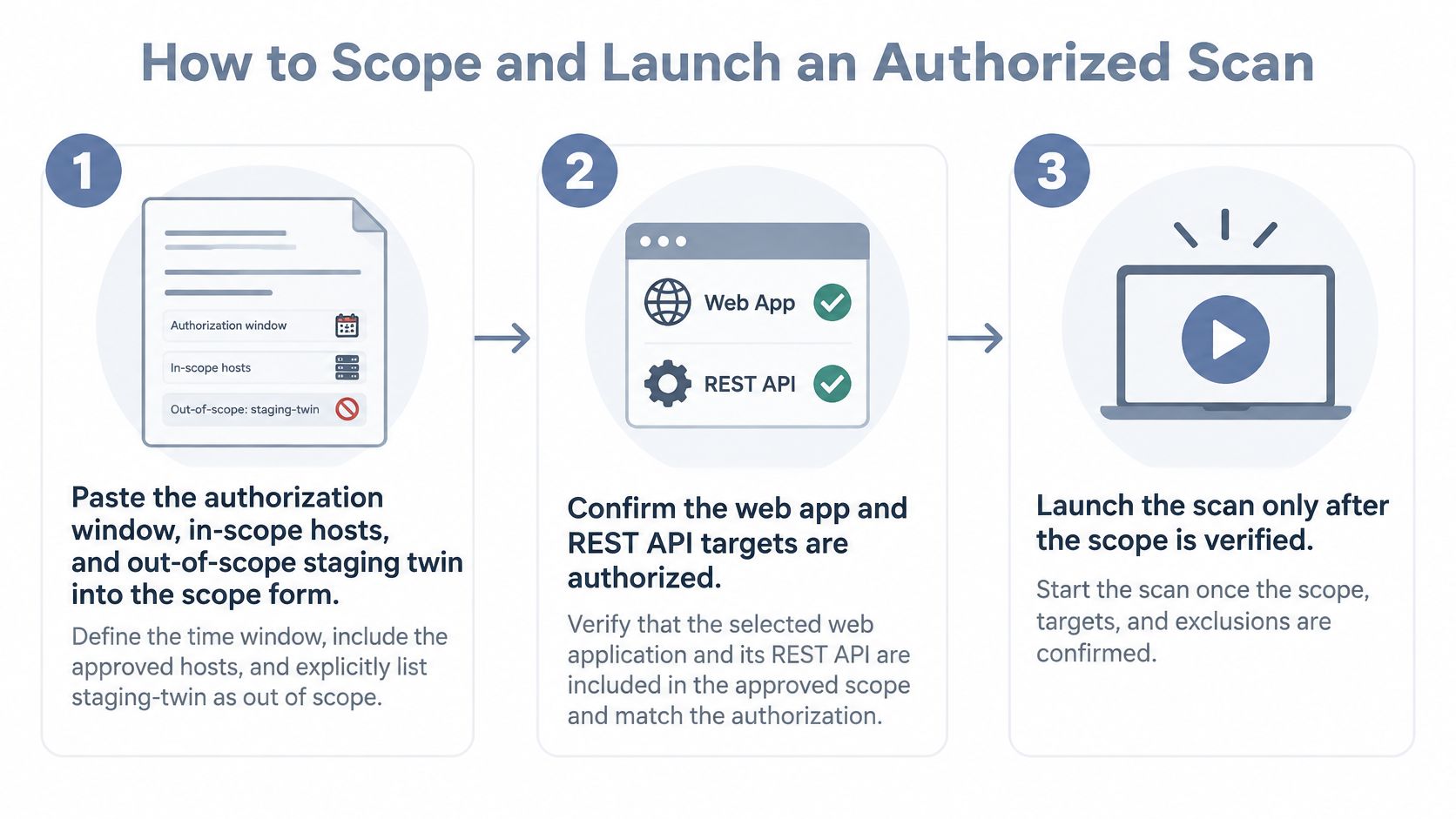
Use a concrete engagement: the customer authorizes the production customer portal and its REST API, while the staging customer portal and staging REST API are explicitly excluded. These are engagement labels, not instructions to discover or guess hostnames.
The failure to prevent is a convenience scan of whatever URL appears in the active file. A production workflow needs an approval gate, timestamps, and repeatable scope. A demo that scans a random localhost URL doesn't establish any of those controls.
Launch from the authorization, not the file
Record the authorization before invoking a scan command. Paste the approved testing window, in-scope host strings, excluded staging twins, permitted techniques, and stop conditions into the engagement notes. Include the customer contact who can suspend testing. If the production portal is approved but its API isn't named, resolve that omission before continuing.
Choose the target type that matches the authorization: web application, REST or GraphQL API, internal or external network, or a cloud account on AWS, Azure, or GCP. For this engagement, configure the production portal and production REST API as the authorized assets. Don't substitute the staging API because its credentials are easier to obtain.
Enter only approved identifiers. Use the exact hosts or account identifiers from the authorization, not the repository root or a shared developer tunnel. Review imported API definitions for staging server entries, external authentication endpoints, and callback destinations that aren't approved testing targets.
Assign the pentest server or region agreed with the customer. Check its engagement association, not just its friendly name. Another customer's server must not become the fallback because the approved server is temporarily unavailable.
Read the confirmation dialog against the authorization. Reject it if the host string names the staging portal, staging REST API, a typo, or an unauthorized production asset. Confirm the intrusive test selection and testing window as well as the hostname; the correct production host doesn't authorize every technique.
Start once and monitor asynchronously. Leave the editor usable while status arrives. If the interface looks quiet, check whether the service accepted the request before pressing Start again. A missing progress update isn't permission to create a duplicate production job or switch to staging.
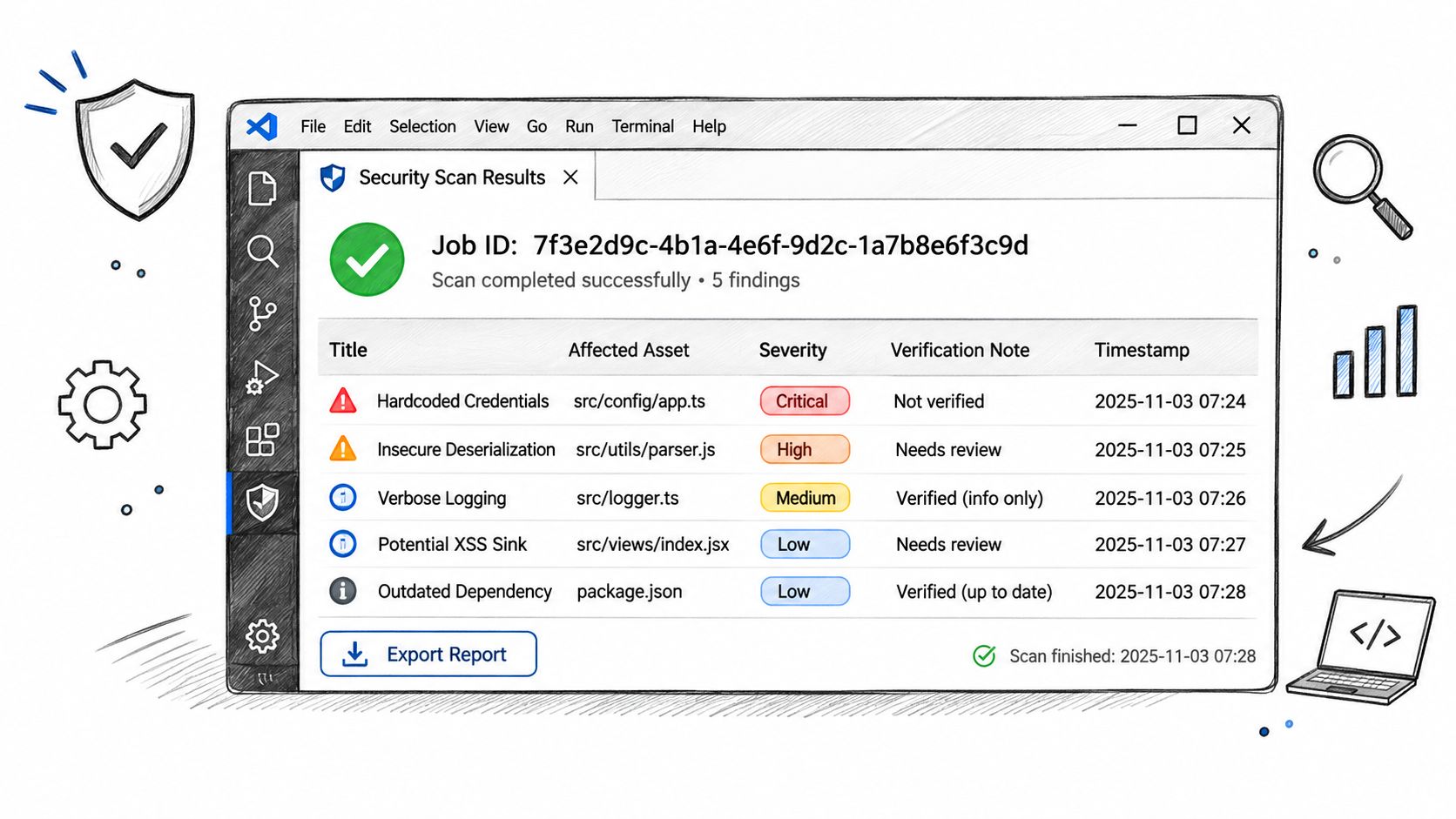
Record the job id, start timestamp, and operator name in the audit trail. Capture the approved scope associated with that job so a later reviewer can distinguish the production assessment from the excluded staging twins. Open the findings view only after a job id exists.
Make the approval repeatable
Maintain an engagement record that another operator can use without interpreting your open tabs. The pen test plan guide provides a useful basis for documenting authorization, execution boundaries, and delivery expectations.
Extension coexistence deserves attention too. Among surveyed .NET developers, JetBrains' 2025 State of .NET report reported C# Dev Kit use at 69% and GitHub Copilot use at 37%. Those figures describe that surveyed population, but they illustrate why an MSSP should test authentication ownership, assistant context handling, and command conflicts in its actual editor image.
The operator approves a specific assessment. The active editor tab never grants testing authority.
For recurring work, retain the scope labels and require approval for changes. Don't let a convenient rerun automatically inherit newly added hosts.
How to Read Evidence and Export the Report
Start with a completed job id, not a fresh scan command. Confirm its tenant, scope, execution location, and completion state before opening individual findings.
Read each finding as an evidence package. It needs a title, affected asset, severity, verification note, timestamp, and a screenshot or request-response excerpt sufficient to support the claim. An item without supporting evidence stays a lead, not a client deliverable.
Keep the supported finding and reject the scope violation
Consider these hypothetical review decisions:
| Finding | Review decision | Reason |
|---|---|---|
| SQL injection on the authorized production REST endpoint | Keep after controlled verification | The screenshot, reproduced request, response behavior, and timestamp support the finding on an in-scope asset |
| Missing security header on the excluded staging portal | Exclude from the client finding set and record the scope deviation internally | Scanner severity doesn't override the written exclusion |
For the SQL injection finding, verify that the evidence demonstrates the claimed behavior. A generic server error or a screenshot of a scanner label isn't enough. Use a controlled reproduction within the approved techniques, avoid unnecessary customer-data extraction, and distinguish observed impact from possible impact.
The staging header finding requires a different response. Don't retest it to make the evidence stronger, and don't include it because the scanner rated it highly. Preserve the internal audit record, investigate why the excluded host was contacted, and keep it out of the authorized assessment's finding set.
Build the delivery pack
Map retained findings only to frameworks named in the statement of work. HIPAA, SOC 2, PCI-DSS, CMMC, ISO 27001, GLBA, and GDPR aren't interchangeable labels; use the specific control reference already carried by the export and verify that it fits the customer's requested assessment.
Prepare PDF for executive and technical readers and JSON for an approved portal or ticket-system integration. The penetration-testing reporting guide can help organize the client pack, but the operator still owns the delivery checks.
- Evidence integrity: Confirm screenshots, request excerpts, and timestamps survived export and remain legible.
- Customer isolation: Search the report for another tenant's name, asset labels, contacts, or evidence.
- Claim quality: Separate verified vulnerabilities from observations and unconfirmed leads.
- Comparison labels: Preserve engagement and asset labels so recurring tests compare cleanly.
Redact secrets without removing the information needed to understand the finding. Keep any sensitive original evidence in its approved restricted location rather than embedding it in a broadly distributed executive PDF.
Delivery test: A reviewer should be able to connect the asset, claim, evidence, and control reference without opening the operator's editor.
Stop when the agreed client pack is complete. Remediation planning belongs to the customer's engineering process unless the engagement explicitly includes further work.
Fixes When Auth Scope or Export Fails
The scan command spins, then dies on authentication. Don't respond by creating a broader key or pasting credentials into settings to get past the error. Identify which guardrail failed and repair that boundary.
Pentest extension failures and fixes
| Symptom | Likely cause | Fix |
|---|---|---|
| Sign-in rejected | Unverified account or key outside SecretStorage | Use a verified org key in SecretStorage |
| Scan hit staging | Confirmation accepted on the wrong host | Cancel and re-scope to the authorized host |
| Green job, no findings | Target unreachable from the pentest server | Check path and firewall, do not call it clean |
| Editor hangs at startup | Heavy work during activation | Reload and start only from the scan command |
| Token in the output channel | Redaction missed a secret | Rotate the key and clear the channel |
| PDF has no screenshots | Export ran before evidence sync | Reopen the same job id and export again |
| Other customer's assets visible | Wrong tenant selected | Stop and switch tenant before download |
These are diagnostic starting points, not definitive root causes. Authentication can also fail because a key expired, was revoked, belongs to another organization, or can't reach the approved backend. SecretStorage prevents inappropriate credential persistence; it doesn't make an invalid credential valid.
Repair only the failed boundary
For authentication, sign in again with a key issued to the verified organization and inspect a redacted error response. Don't widen permissions until you can identify a specific missing permission required for the approved action.
If testing reached staging, cancel it and revoke or terminate the active job where supported. Preserve the audit record and follow the engagement's notification procedure. Correcting the target selector doesn't erase activity that already occurred.
A green status with no findings needs reachability evidence. Check the path from the assigned pentest server, the customer's firewall treatment of that scanner, and any application authentication prerequisites. Don't conclude that the application is clean because the orchestration layer finished.
For a startup freeze, disable the extension, reload, and inspect activation behavior before re-enabling it. Don't compensate by launching an unreviewed shell command from the editor.
Contain disclosure before continuing
A token in the output channel requires rotation. Clear the channel, review copied logs and tickets, and handle any retained diagnostic evidence under your incident process rather than circulating the exposed value.
Missing screenshots call for reopening the same job id and checking evidence synchronization, not retesting the application. Another customer's assets require an immediate download stop; switch tenants, verify isolation, and investigate further if the assets remain accessible.
Remote containers and Codespaces don't make backend traffic local-only. Changing the editor host won't repair an unapproved service destination.
Our Service may rely on third-party tools, models, and infrastructure, and ThreatExploit.ai is not responsible for third-party services. Treat an independent toolchain failure as a platform incident requiring diagnosis, not a reason to bypass the controlled workflow.
After each fix, rerun only the failed check. A credential repair doesn't authorize a new scan, and an export retry doesn't require another exploitation pass.
Keep the Extension Only After These Checks
Keep the extension only if your team can demonstrate its controls on the workstation image used for customer delivery. A successful demo isn't enough to approve privileged software across consultant laptops.
Microsoft's extension runtime security guidance describes Marketplace protections including malware scanning, dynamic detection, signature verification, secret scanning, and unusual-usage monitoring. Those are useful safeguards, not a substitute for your release gate.
Approve the package and its behavior
Treat the plugin as privileged code. Extensions can read files and execute code without a browser-style authorization prompt for every action, so a publisher badge shouldn't become your entire trust decision.
- Package review: Scan the packaged VSIX and transitive dependencies, audit pinned dependencies, and retain a software bill of materials where available.
- Update control: Pin the version after successful validation and review updates before a client delivery week. Test changes to authentication, tenant selection, and report output in a disposable workspace.
- Distribution policy: Allowlist the approved ThreatExploit publisher identity and backend destinations. Block casual Marketplace installation on consultant images.
- Input handling: Reject unsafe target input and don't pass unsanitized values into shell commands.
- Performance check: Compare activation and editor responsiveness with the extension disabled, using a representative repository.
Keep a rollback package and a named owner for deployment decisions. If an update changes the evidence schema, validate the downstream portal or ticket ingestion before promoting it.
Make a keep-or-remove decision
The service is available through our autonomous testing platform and Studio interface, and through a developer API intended for builders integrating capabilities into their own products and workflows. Role-based permissions and API keys are available for CI/CD integration; use a scoped automation identity rather than a shared personal login.
For the editor path, require demonstrations of publisher identity, tenant separation, and SecretStorage key handling. If any cannot be shown, remove the extension from consultant images until the gap is resolved. Don't retain it merely because operators like the findings panel.
If those checks pass, choose a live authorized engagement, verify its written scope and assigned execution location, read the confirmation, and record the resulting job id. That controlled run, followed by evidence review and a tenant-scoped export, is the acceptance test that matters.
ThreatExploit AI offers automated penetration testing for security service providers, with verified results and evidence-backed reporting across web, network, and cloud engagements. Visit ThreatExploit AI to evaluate how its platform, Studio, and developer API fit your governed delivery workflow, then validate the editor integration against an authorized engagement before rolling it out to your team.